Showing posts with label Excel. Show all posts

Friday, September 28, 2012

Open Excel File by Double Click

Recently I had experience a problem at work. I cannot open Excel files by double click them. I tried to open from Excel Open menu and it works fine. I have no problems to open other files such as word or txt files.

I checked my other colleagues and they don't have the issue. One of my friend recommended me to find solution from web by googling. Soon I found a solution. This is something related to Excel registry settings. Since the complexity of Windows registry, it is not recommended to directly edit or change settings there. I found that there is file association from File Explorer. Here is what I did.

First, open File Type from Tools menu, locate the XLS (notice the upper case):


Click Advanced button, the following dialog is displayed.


Select Open in Action list. Click on Edit button:


Make sure to clear Use DDE, then click OK. Apply changes. This will be double click on Excel default behavior back.

Reference


Read More...

Sunday, April 10, 2011

Two Useful Excel Functions

I often use Excel as a tool for some tests or data analysis. For example, last week I tried to comparing two columns in data base to see their difference. I found out that I had an Excel as a tool to do that. This file contains some formula for column comparison. Here is summary what I did for my future reference.

First, I copied column from table 1 to a worksheet(table1), and another column from table 2 to another worksheet(table2). Then I added a formula like this in column B:

=MATCH(A2, Table1!A2:A2409, 0)


MATCH function is useful to find first parameter value from the second parameter array, and the third parameter 0 is used to find a match. The result will be the index in the array if item is found, or #NA if nothing is found.

The result will be index number or #NA. I prefer to view the result as true or false. ISNA() is a function for this purpose.


above are snapshots of NeoOffice at my iMac.

Read More...

Saturday, April 02, 2011

Broken MSCOMRT2.OCX Caused Excel Add-in Exception

Last week I spent almost two days to resolve one issue. Excel add-in throw exceptions after an enterprise application update was installed. This happened initially in a product our team supports. The product is from a third party application suite by company C, where one Excel add-in is part of.

The symptom of the issue is that when Excel is opened, an exception is displayed right away. This one is caused by an add-in provided by the company C.


I contacted with the company which provides support the product. What they did was to remove monthview control from the add-in. It did not cause Excel error after that, however, I realized that this was not the right way to resolve the issue. The monthview is a common control from VB 6.0 control. Soon I found this control is MSCOMRT2.OCX, and there are some plains about its broken.

Soon I got calls from other department about the similar exceptions in Excel. They use different add-in and I realized that the root is to fix the control. After many discussions with other team member, I narrowed my focus on this control. I was right on this issue. I found a fix from Microsoft support knowledge base. The fix contains a cab file with only those two files:

mscomct2.inf
mscomct2.ocx


What I did was unregister the ocx file in %systemroot%/system32 first,


Then I copy those files to the path and register the ocx:


The fix seems very simple. However, at first no one knows the root of the issue. The update deployment team was afraid of the update would cause many user apps not working. I think the team work and web search played important role to get down the solution. Based on our communications on the issues and information we got, I finally found the right package as a fix.

Read More...

Saturday, February 12, 2011

.Net Project to Copy Excel Data

In the past weeks, I have been working on a project to copy Excel data between worksheets. The source worksheet contains some formulas with links to other worksheets and add-ins. The problem is that the API functions defined in add-ins take long time to get data from a remote service. When there are hundreds and even thousands of rows in Excel, it will take to long time to refresh data. That's the reason to have a scheduled job to copy the daily data from source excel file to another one with only values. Since the output put excel file contains only values, the show time is much responsive.


The project was initially created in .Net by using Microsoft.Interop.Excel, which is a warper class for Excel COM components. This is the first time I saw this namespace and real case usage. Basically, with this namespace and classes there, you can create Excel application, open existing or create new workbook, create or get worksheet.

I found that it is very powerful and interesting to do almost the same work in .Net project as you do interactively with Excel in Windows. For example, if the source excel file contains some links, you can ignore those links and rebuild them in .Net. You can reset excel cell data value and simulate special copy and paste to copy only values to another worksheet.

I updated the project to move many hard-coded settings out to a configuration file so that the tool will be more generic. The goal of the tool is to copy values from an excel file to another one. The figuration contains those settings:
  • Input and output excel files;
  • The links in both input and output files to be rebuilt;
  • Data values to be set in input file. Those values are in range object of an excel worksheet object. The values are strings or Excel formulas;
  • The range of data to be copied in the input file and destination range in the output file;
  • Page layout settings: display grid lines, window display headings, page area and line breaks.
I found one setting is very helpful. You can set excel object visibility so that you can debug your codes by viewing Excel status. With this debug feature, I found many bugs or wrong settings in the existing codes.

The project is almost rewritten to become a more generic tool with configurable feature. I used this not only resolve the original required excel report issue, but it has been used in many other cases. However, personally, I don't think doing the excel work in .Net is a practicable. The excel classes are to easy to be broken. When the project becomes a more generic tool, many unseen issues have not been tested. I don't want to spend too much time to fix issues. The coupling data and report to Excel is too much pain.

Read More...

Saturday, November 06, 2010

Using Excel to Compare SQL Database Tables

It is a very common task to compare data content between two SQL database tables. If two tables are within a SQL database, I normally use TSQL EXCEPT and UNION to get difference, detail in my previous blog: Comparing Two Tables By SQL Stored Procedure.

I could add linked server in SQL database so that the same method could be used to compare two tables in two difference SQL databases. However, it would cause too much trouble, such as change SQL settings, or caching millions rows of data from linked server.

The alternative way is very simple. I just run a SQL query to get data in SQL server management studio. Then copy the result to excel, either copy or export. Do the same thing against another SQL server again. By using Excel, it is very easy to compare cell by cell to get any difference.

The following are steps I use in Excel.

Excel Worksheets

The excel file contains four worksheets. The first one is comparison, which will be discussed in detail latter. The second one an third one are data result from two SQL database tables, for example, source_table1 and test_table1. SQL worksheet contains SQL query used to get data.


In the worksheet of comparison, the comparison is done by the following formula. For example, for cell A1 column:

=IF(source_table1!A1=test_table1!A1, source_table1!A1, "Diff (" & source_table1!A1 & " : " & test_table1!A1 & ")")

For the data cell A2:

=IF(source_table1!A2=test_table1!A2, "YES", "Diff (" & source_table1!A2 & " : " & test_table1!A2 & ")")

The formula of A2 comparison applies to all other data cells. Just copy the formula and paste to all the cells you want to compare. Excel is smart enough to adjust cell coordinates to get the comparison results. The following is an example of comparison result:


If you have thousands of raws of data in Excel, you can use Excel's Filter feature to narrow down the differences easily. From menu Data|Filter|AutoFilter to turn on the filter:
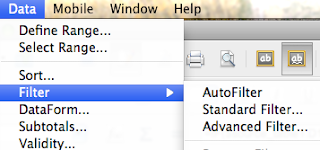

On the header filters, you can configure filter to whatever levels you want. Here are two examples:


As you can see, by using Excel it makes much easy to compare two tables and find out the differences.

Import Data Issues

The above method works fine for most of cases. I had a problem to get data from SQL to Excel last week when I was working on one SQL database table. I had spent for 2 hours+ finally I found the problem. Some rows contain double quotes in their raw data. For example, there was " being used in a table as inch unit. This unbalanced quote caused the Excel to import rows from either clipboard or csv file.

Excel treats " as string data type mark. In order to make importing to work, it has to be escaped. I used VIM to resolve the issue. Just simply search for " by typing /" in VIM, it will mark and find those quotes. Then I used VIM's Replace feature to escape all the single quote by the command(replacing " with ""):

:%s/"/""/g

After the normalization of data, I got the expected data from SQL query result to my Excel.

Excel Being too Smart

This issue is beyond the main topic of comparing data between SQL database tables. However, it is worth to leave a note here.

Here is the story of what I do to import or copy data from SQL query result to Excel. For the first data source, I copy the result of SQL query into clipboard. I think that by default, the delimiter used to separate columns is a tab char. I use Paste Special feature from Excel to paste pure text. Then Excel will prompt me to select what delimiter is and preview data in a grid. I like it very much. However, when I repeat the same steps to copy the data result from the second data source, the Excel does not prompt me, nor provide preview. It just copy data to columns. It is too smart to remember the delimiter.

However, I would like to preview data before pasting. I could not find a way to disable this smart feature. Finally I found an alterative way. I pasted the data to VIM first. Then replace the tab to semi-command (make sure it is not used in the raw data):

:%s/\t/;/g

Then copy the whole text to Excel. This change will fool the Excel to prompt the preview as expected.

Read More...