Showing posts with label VIM. Show all posts

Thursday, May 12, 2022

Update Block of Codes with VIM

Recently I have been working on my iOS app project. One thing I need to do is to update several blocks of codes in a code file. The update is to add directives #if...#endif to the matched block of codes. Those blocks of codes have very similar pattern:


  1. private func configureSearchControllerDelegates(_ sc: UISearchController)
  2. {
  3.    log.logMessage() {
  4.        return "configureSearchControllerDelegates"
  5.    }
  6.  ....
  7. }

The first thing is to find the matched block of codes. Use the following command:


\(\s*log.logMessage()\s*{\_.\{-}}\)

Here is the explaination

\( and \) is for grouping. Starting from spaces \s and then log.logMessage(), followed by many spaces till the char of {. After that many lines of any chars till the char of }. \_. is for multiple lines, and {-} for none-greedy match(matches 0 or more of the preceding atom, as few as possible).

In VIM, the matched codes are marked as red.


With above verification, it is time to add my desired directive codes around the matched block of codes. Here is the replacement command.

:%s/(\s*log.logMessage()\s*{\_.\{-}}\)/#if D_1\r\1\r#endif/

Here is the explaination

Replacing the matched codes: insert #if D_1 as the first line, then the matched codes as group by\1. Finally add the last line of #endif after the matched codes. \r is a line break.

Here is the replacement command in VIM:


and wallah is the result:

References

Read More...

Friday, March 18, 2022

Removing Duplicated Lines by VIM

Recently I have interest in GPS location coordinates. In my TapToCount-3W iOS app, there is a feature to record location information for each tap.

I have been puzzled by a scenarior for long time. For example, if I make several taps at same location, the GPS locations spead within a range, several tens of meters to meters apart, 30 meters or 8 meters as examples.

Further invetigation, I found that the decimal points of GPS coordinates are related to location accuracy. The more decical points are in coordindates, the more accuracy.

VIM is a powerful tool. The following is a real case of my invetigation and analysis of GPS coordindates by using VIM.

Export GPS Information

First, I have to get GPS location coordates from my app. I use the Export feature to share the result of cvs file to my mac.


Using Numbers to open the csv file. The tap information includes my sleep times between Dec 2018 to Mar 2022, 7484 lines of taps I made. From GPS coordinates, I see the decimal points up to 14 digits.

For example, here is a coordinate of latitue, longitue, and altitue value:
53.55404449631790,	-113.2990255394140,	692.3739891052250

Find Duplicate GPS Information

7484 lines are quite a lot of information. I need to find out if there is any duplicated information.

Use the following command to find duplicate coordinate information:
/\(T-\d\)\(.*\)\n\(.*\2\n)\+

Match pattern explaination: first group beginning with "T-" and a digit, then any charts (coordinates) as second group, new line, next or more lines of any charts followed by the matched second group (coordinates).

The result is as followings:


Remove Duplicate Coordinate Lines

With about search result, I can then proceed removing duplicate coordinate lines.

Use the following command to remove duplicate coordinate information:
:%s/\(T-\d\)\(.*\)\(\n.*\2\)\+/\1\2/

Replacement command explaination: replace the matched pattern (duplicate GPS coordinate lines with group 1 and group 2 defined in the matched pattern.

Analysis Results

With VIM search and replacement as a convenience and powerful tool, I can do my research and analysis on GPS coordinates collected in my TapToCount-3W app.

Using Numbers, I can get coordinate values with different decimal digits, and find out what duplicate coordinates.

7,485 Taps with GPS coordindates
Decimal
Places
Degrees
Duplicates
Unique
0
0
5246
2239
1
0.1
5245
2240
2
0.01
5245
2240
3
0.001
5222
2263
4
0.000 1
4711
2774
5
0.000 01
4638
2847
14
0.000 000 000
000 00
577
6908

Based on above analysis, I think that the best decimal points should 5, 4, or 3 places, with accuracy corespoinding to +/-0.555m, +/-5.55m, or +/-55.5m. This will reduce duplicate coordinates up to 68% to 70%.

By using VIM, I did further analysis. I export a group of taps from Jan 1, 2022 to now (Mar 19, 2022), which I know for certain that they(454 taps) were tapped at the same location. The following are 2 results: one with altitute into consideration and another with no altitute.

454 Taps with GPS coordindates and altitude
Decimal
Places
Degrees
Duplicates
Unique
0
0
444
10
1
0.1
444
10
2
0.01
444
10
3
0.001
442
12
4
0.000 1
255
199
5
0.000 01
434
20
14
0.000 000 000
000 00
444
10

454 Taps with GPS coordindates and NO altitude
Decimal
Places
Degrees
Duplicates
Unique
0
0
453
1
1
0.1
453
1
2
0.01
453
1
3
0.001
452
2
4
0.000 1
444
10
5
0.000 01
33
421
14
0.000 000 000
000 00
8
446

With above research results, they helps me better to understand GPS coordindate information, and to take better and effective strategies for updating my app freatures and interfaces for my app users.

References

Read More...

Sunday, April 05, 2020

Use VIM to Clean Up HTML

I have set up a blog at Blogger with more than one authors so that we can write our stories, observations about COVID-19. Some authors do not have any knowledge about HTML or how to write clean blogs there. As a result, the blogs they created contains massy HTML tags, either cause them frustration to edit text or inconsistent styles spreading blog text.


I am tech support person working hard behind scenes. One of my jobs is to clean up their blogs to remove unnecessary HTML tags. Here is one example how complexed HTML is:


VIM as Effective Tool


It is really tedious and time consuming to manually remove HTML paired tags. For example:

<span ...>...</span>

I realize that VIM is a great tool for help!

Here is the command to find out span paired block in HTML:

/<span\(\_.\{-}\)\@=\_.\{-}>

search for start patten <span any chars afterwards including mutilple lines till >.

Here is the result:


That's very exiting! With this confirmation test, it will be just line of VIM replace command to clean up span tags:

%s:<span\(\_.\{-}\)\@=\_.\{-}>::g  


More VIM command for finding and replacing


/<\/span\(\_.\{-}\)\@<=\_.\{-}> ## find </span>
:%s:<\/span\(\_.\{-}\)\@=\_.\{-}>::g ## replace </span>


/<div\(\_.\{-}\)\@<=\_.\{-}> ## find <div...>
:%s:<div\(\_.\{-}\)\@=\_.\{-}>::g ## replace <div>


/<\/div\(\_.\{-}\)\@<=\_.\{-}> ## find </div>
:%s:<\/div\(\_.\{-}\)\@=\_.\{-}>::g ## replace </div>

With above a few commands, I cleaned up HTML with great result!


References


Read More...

Wednesday, April 01, 2020

Blogger: Change Background Color & Text Size

I have a blog at Blogger. Recently my friends ask me if I could change the background color and increase font size for my posts. After search on web, soon I found solutions.

Change Background Color


First go to Theme, then Edit HTML.

Expand line 9, b: skin section.


Search for "post.background.color". You will find this as variable definition.


In my Blogger, it is located at line 32: Make a copy the variable first. Then you can make change:

  1. <Variable name="post.background.color" description="Post Background" type="color" default="#ffffff" value="#353d4a"/>
  2. <Variable name="post.background.colorDeleted" description="Post Background DELETE" type="color" default="#ffffff" value="#1c1c1c"/>

Make sure the description on line 2 is not as same as description on line 1. I think that the description is a key for variables.

This variable is used for the class of post.outer


Change Font Size


Another change I would like to do is to enlarge text size of post.  This is very easy to do. Find "post-body" in HTML template


In my Programmer's blog, I could not find post-body. The size of text is defined in body class.


References


Read More...

Friday, December 18, 2015

Enhanced Syntax Highlighting by HTML

I have been using coloured syntax for codes in my blog for long time. The basic technique is to use VIM's syntax template and TOhtml command. In this way, I can easily get html format for my codes.

The only thing that has been puzzled me is to add line numbers. In VIM is very easy to add line numbers. The view is good. By adding line number, I could explain codes in my blog by line. However, it is a messy if you want to make a copy of my codes in my blog. I would like to have line numbers in my colourful code syntax, but not be copied if selected.

While I was reading Swift Programming Language by Mac Developer Library. I found that code examples there do have the feature I want. By further exploring, I found html ol tag being used. That's the solution for my long time puzzle!

Setup Line Numbers for Codes


Here are steps to get colourful codes in html by VIM:
  1. :set nonumber # to disable line number
  2. :set syntax=swift # change syntax template to swift
  3. :let use_html_css=1 # to use css in html, instead of style attribute
  4. :TOhtml # to convert text to html
  5. remove html tags not needed
  6. :%s:^:<li>:g # add </li> tag to the beginning of each line
  7. :%s:$:</li>:g # append </li> to the end of each line
  8. :%s:\s\@<=\s:\&nbsp;:g # replace continuous spaces, not the first one, by html special code for space.
The html codes generated by above steps are li tags, which can be added to the body of ol tag.
Note
The reason I use css class is that blogger provider allows me to add customized css. If you don't have access to css, then you should use embedded style for syntax colouring.

An example is as follows:


The html codes could be further enhanced, for example, moving ordered line number left out of code box. For the time being, I think it is good enough.

Add Note Section


This is a related topic: adding a note section for code explanation. I like the way in Mac Developer Library to add a note section in simple and clear format. I added this feature to my blog as well.

What I did is to add the following css classes to my html template in blogger:

  1. /* div box with class note for note section */
  2. div .note {
  3.  border-left: 5px solid rgba(233, 233, 233, 1);
  4.  background-color: rgba(249, 249, 249, 1);
  5.  margin: 40px auto 35px;
  6.  padding: 15px 15px 7px;
  7.  width: 85%
  8. }
  9. div .noteTitle {
  10.  color: rgba(128, 128, 128, 1);
  11.  # font-size: 9px;
  12.  letter-spacing: 2px;
  13.  margin-bottom: 8px;
  14.  text-transform: uppercase
  15. }

Here is example of above note section in html:

<div class="note">
<span class="noteTitle">Note</span><br />
The reason I use css class is that blogger provider allows me to add customized css. If you don't have access to css, then you should use embedded style for syntax colouring.
</div>

References


Read More...

Wednesday, December 09, 2015

Back to MacVim

It has been quite a while not using VIM in my Mac. During this break, I updated my Mac OS and accounts. One thing I lost is my VIM files such as configuration and syntax settings. All those files are located in ~/ and ~/vim folders. The OS update or new account setup I did missed files in those locations.

I had to restore those settings as much as I can. I will log all I did to restore MacVIM and settings in this blog.

MacVIM Installation


MacVIM in OS 10.11.1 EI Capitan was not working. I had to reinstall it. The version I reinstalled is MacVIM 7.4 from MacUpdate website.

Since the package is not from App Store, I had to set up my System Preference security to anywhere for applications. Just to remember to set this security back to more secured one after first time running MacVIM.

Configuration


All the configuration for VIM are at HOME directory.

Fortunately I have a backup of my VIM configuration for Windows, _vimrc, on my cloud drive. I restored the file mac file to

~/.vimrc

I lost all my previous syntax configuration files. This time I am going to use VIM for swift codes. I got swift syntax file and put it at:

~/.vim/syntax/swift.vim

Here is a command to set up swift syntax in VIM

:set syntax=swift

References


Read More...

Monday, October 15, 2012

VIM Tips: Multiple Commands

This tip may be too simple and not not the best way to do it. However, it saves my tremendous time. Last week, I was going to bring my Visual Studio solution to my work. This solution contains a lots of projects. I realized that there are some namespaces and copy right issues to be updated. I could use VS to do it. But the VS at work is a new one, without tools like Refactory tool, CodRush Express, Resharper.

I did not like the native Find & Replace in VS. I decided to use VIM to do the job. The challenge I faced was that, first, I had to find all the files contains the strings I would like to replace, and secondly, do the find and replace for each file.

I used TotalCommander tool to do the search. It has built-in find feature and it is very powerful. I can easily get the search result files in one panel. Then I added a tool bar associated with VIM (set parameter %P%N). It is a very cool tool.

Next, I tried to use VIM to do replacement manually. I had too many .cs files. It was just to tedious. Then I searched for a way to do replacement, then save the changes and quit. Can I do three commands in one line? Soon I found a way to do it:

:%s/searchpattern/replacement/g | write | q

In VIM the pipe char is used to link a list of commands. This made my job much quicker. Afterward, I found that this could be done on command line like this:

gvim -c "%s/searchpattern/replacement/g | write | q" test.cs

I think that there must be a better way to run a chained command in a Windows command console: first finding all the files containing expected strings, and next using gvim to do the replacement.

Reference


Read More...

Wednesday, October 03, 2012

VIM Tips

Recently I was working on a project to set up a new server. The new server is a replacement of existing one. One of issues I tried to resolve is to migrate permissions from the existing server to the new server. The problem is that there are too many folders to be checked, 4k folders. I need to find a way to export permissions for each folder to a text file.

Quickly I found a command to get permissions:

cacls.exe folderName

It was very nice to find out this command. Then I use Tree to export folders to text file and edited the text file as a batch file. This is a simple batch file, but a long list of folders.

@cacls folder1 > perm.txt
@cacls folder2 >> perm.txt
...
@cacls folder4000 >> perm.txt

I encountered a problem. Some of path was wrong. I think I may missed some parts of their paths. To find out which one is not valid is a challenge. I need to find a productive way to do that. I knew the following command is a convenient way to detect valid path:

@IF NOT EXIST %folder1 ECHO %folder1

I used VIM to help me to create another batch file based on my above batch file. I used the following VIM replacement command to trim my batch file:

:%s/@cacls //g
:%s/ > perm.txt//g
:%s/ >> perm.txt//g

Those are simple VIM find and replace commands. Now I have a list of paths left:

folder1
folder2
...
folder4000

Then I use find and replace with group command to repeat folders with ECHO command:

:%s/\(.*\)/\1 ECHO \1/g

where \(xxx\) is a group. Finally I insert prefixing IF command at each line the the command:

:%s/^/@IF NOT EXIST /g

where ^ is the beginning of line. With above commands, my new batch file was created.

@IF NOT EXIST folder1 ECHO folder1
@IF NOT EXIST folder2 ECHO folder2
...
@IF NOT EXIST folder4000 ECHO folder4000

Soon I found invalid folders and quickly I fixed my scripts.

Read More...

Monday, May 07, 2012

Use VIM for Objective-C Syntax Highlighting

In my previous blog, I mentioned about using VIM for code editing. One of VIM feature is to provide syntax highlighting. I think that I added object-c syntax highlighting to my VIM long time ago. However, when I tried to edit a .m file, I did not see the colorful syntax.

I checked my ~/.vim folder and I found some plugin files for cocoa there. I must have done the objective-c syntax stuff. The file type for objective-c is not .m or ft=m. The file type should be something else.

Quickly I found the file type. Here is the command to enable syntax for objective-c file content:

:set ft=objc

Reference


Read More...

Friday, April 13, 2012

VIM Tip: Not Containing Pattern (3)

I find out that Lookaround zero width assertions are very powerful and useful. The more I use it the more I like it. Think this search strategy as match a pattern with addition zero width or hidden pattern together.  This can filter some parts out, which cannot be done just by matching a pattern.

I have used this technique resolving many of finding and replacing issues. Normally, I use search first to make sure the results meeting my expectations. Then I use replacement to substitute the results with my expected contents. Here are some examples. As you can see that it is very productive. For sure, it does require a lots of brain energy to think and to try hard. However, this will sharp you brains. I really enjoy learning and using VIM.

Examples


Let take pseudo codes I used in my previous blog as example. A simple search is to find character 's', and the next character is 't' as zero width, look ahead.  The search command is:

/st\@=

This tells that first token is 's'. The search engine searches for the token as a pattern. When it is found, the engine stops at the found position in the string. Then, the engine looks for the next token 't'. The look-ahead tells the engine to construct the next search for the second token from the substring afterward the first token.  The engine continues to search for the second token as an immediate match. If there is a match, the complete pattern is found. The first token 's' is a matched result as return; if there is no match, the match is failed.


The next simple example is look-behind zero width assertion command:

/\(s\)\@<=t

The pattern to be matched is 't', which is also the first token. The second token is a group of characters 's'. When the first token is found, the search engine stops. The look-behind tells the search engine to take the substring behind as the next search from this position.  If the match (second token) is found right behind the position, a complete match successes, and the first matched token is returned as a result. The following snapshot shows three results of 'ring's:


More Complexed Examples


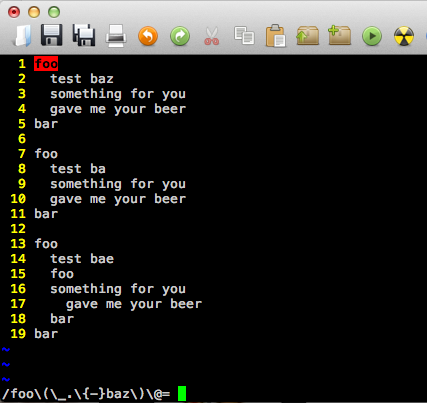
The following text are some blocks of foo...bar:

foo
  test baz
  something for you
  gave me your beer
bar

foo
  test ba
  something for you
  gave me your beer
bar

foo
  test bae
  foo
  something for you
    gave me your beer
  bar
bar

Here is a command of searching for foo...bar block containing 'baz':

/foo\(\_.\{-}baz\)\@=\_.\{-}bar

Notice that the text within the foo...bar block may contain multiple lines of text. Here \_. is for multi-lines of text. \{-} is none-greedy match, which means matches 0 or more of the preceding atom, as few as possible.  The above search can be described as searching for:

'foo' as start, next zero width pattern: 0 or multiple lines of text till 'baz', then 0 or multiple lines of text till hit 'bar'


You may verify the command by break the search command into two parts, the first part is:

/foo\(\_.\{-}baz\)\@=


The command of searching for foo...bar loop not containing 'baz':

/foo\(\_.\{-}baz\)\@!\_.\{-}bar


Search for the most inner foo...bar block command:

/foo\(\_.\{-}foo\_.\{-}bar\)\@!\_.\{-}bar


Sometimes, I want to add line break tags to the end of a line, but not to the empty lines.  This command can be used to add <br /><br /> to the end of any none-empty lines:

:%s:.\@<=$:<br/><br/>:g


The next example is a very useful one. I often use VIM convert program codes into HTML format. Some times, I need to convert a group of spaces into &nbsp;s, except the first space. This is an excellent case to use lookahead zero width assertion. I figure it out and it becomes my favorite the search and replace commands.

/\(\s\)\@<=\(\s\)\+


After examining the results, I use the following replacement command to do the conversion:

:%s:\s\@<=\s:\&nbsp;:g


Reference


Read More...

Friday, April 06, 2012

VIM Tip: Not Containing Pattern (2)

In my previous VIM tip blog, I mentioned about searching for a pattern of a expected word with not expected word afterwords, for example, 'tablespace' followed by a word not starting with 't'. When I tried to the pattern in an opposite way, I could not figure out how to do a match. For example, a word not starting with 't' followed by a word of 'tablespace'.

I think that I figure it out now, but it took me a while to google and digest the related information. I think it is worthwhile to study this. I am writing this blog to summarize my findings.

Lookahead and Lookbehand Zero-width Assertions


At first I thought about match a pattern not containing another pattern should be as simple as using a negate or ! operator to identify not-containing-pattern. There may be a not operator in VIM search, but I could not find it. What I found is Lookaround Zero-width Assertion.

In VIM, the way of search for a pattern not containing another pattern is very smart and elegant. The basic search is to find all matched patterns, and the matched items are returned as results. In VIM, the following is a search command:

/PATTERN

the pattern can be a regular expression.

In VIM, zero width pattern is a pattern to be matched but not in the search results. Think zero width pattern as additional match condition, it can be described as either of following ways:

PATTREN + ZERO_WIDTH_ATOM or
ZERO_WIDTH_ATOM + PATTERN

The first one is called as lookahead zero width assertion, and second one as lookbehind zero width assertion. Assertion here means matched or not matched. The above two are positive assertions. If we take negative or not matched into consideration, there are four types of look around with zero width assertions. They are:

/PATTERN[ZERO_WIDTH_ATOM\@=]
/PATTERN[ZERO_WIDTH_ATOM\@!]
/[ZERO_WIDTH_ATOM\@<=]PATTERN
/[ZERO_WIDTH_ATOM\@<!]PATTERN

Note: [...] is used as optional and also as separator from pattern, [ or ] are not part of search.

As my understanding, VIM uses symbolic like character for look around. As other special characters in VIM, \ is used to indicate look around with zero width assertion. The following table summarizes characters used for this type of search:

\@  indicate lookahead
\@<  lookbehind
=  positive match
!  negative or not match.

In above searches, PATTERN is to be matched. If ZERO_WIDTH_ATOM is supplied, it will be used as additional assertion. If there is any match, the matched pattern items will be returned as results, but ZERO_WIDTH_ATOM is not in the results. That's why it called as zero width.

According to VIM documentation, the definition of ATOM is a character, or a character class, or a group (indicated by \(...\) braces).

Think the Search as a Program


Lets think those type of searches as a program. Here I have the following c-style pseudo codes:

Results getMatchedResults(
   string context,               // basic
   string pattern,
   string zero_width_pattern,    // zero_width pattern
   bool match_zero_width_pattern,
   bool lookahead)
{
  results = EMPTY_LIST;
  result = getMatchedResult(context, pattern);
  while (result != EMPTY)
  {
    if (zero_pattern != EMPTY)
    {
      if ( lookahead ) {
        context_tmp = getNextContextByLookahead(context, result);
        result_tmp = getMatchedResult(context_tmp, zero_width_pattern);
      } else {
        context_tmp = getNextContextByLookbehind(context, result);
        result_tmp = getMatchedResultByLookbehind(context_tmp,
                       zero_width_pattern);
      }
      if ( result_tmp == EMPTY ) {
        if (match_zero_width_pattern) {
          result = EMPTY;
        }
      } else {
        if (!match_zero_width_pattern) {
          retult = EMPTY;
        }
      }
    }
    if ( result != EMPTY ) {
      results.add(result);
      context = geNextContextByLookahread(context, result);
      result = getMatchedResult(context, pattern);
    }
  }
  return results;
}

The pseudo codes are very straightforward. Actually, VIM search is based on Regex as its search engine. The above search expression commands are basic Regex patterns.


References


Read More...

Saturday, March 24, 2012

VIM Tip: Not Containing Pattern (1)

Here is one tip I used last week when I tried to use VIM to match strings with a pattern not containing a pattern. The requirement is about a group of PL/SQL scripts. I have to update some lines in the script containing "tablespace xxx", where xxx is a table space name. There is one exception: don't change "tablespace temp".

I decided to use VIM Search and Replace feature to do the job. Since my search is case insensitive, first, I use the following command to tell VIM to ignore case for my search:

:set ignorecase

Then I used the following search pattern:

/tablesapce\s\+\(t\w\+\)\@!

This search is for any line containing word "tablespace" following any spaces, but the following word  beginning with "t". The following table explains some special characters in VIM:

ItemDescription
\swhitespace character
\+matches 1 or more of the preceding characters...
\(...\)enclosing a pattern as a group.
\wwork character
\@!not containing
\nthe matched pattern in the n pair of \(\), for example, \1 for the first matched group \(\).

Here I used group pattern with containing trick "\@!", which means that the word in the group does not  contain a word beginning with "t".  In my case, "tmp" is an example.

After I verified that the search result meets my requirement. The replace is used:

%s/\(tablespace\s\+\)\(t\w\+\)\@!/\1MyTablespace/gi

\1 is the matched the group 1, i.e., "tablespace" plus white space. Here gi means global and ignore case.

Read More...

Saturday, September 03, 2011

SQLPlus Debug and VIM Find/Replace

Yesterday I was asked to help to resolve some issues for a piece of PL/SQL codes, which was provided by our client support. I was working on only error issues, nothing related to its logic. I spent about 2 hours and finally almost got the script running OK (it was too late in the afternoon). Here are two notes about the work.

First, I needed to debug PL/SQL procedure codes. We were using SQL*Plus command console. For SQLPlus command codes; I saw that command prompt is used to print out messages, but I this command does not work in a block of procedure codes. Quickly I found the command which can be used for PL/SQL procedure debug. It is actually a very simple one, and I used this one long time ago. Here is my note on this again:

SET SERVEROUTPUT ON
dbms_sql.output.PUT_LINE('message');
...
SET SERVEROUTPUT OFF

The second note is about using VIM to add the about debug command dbms_sql.output.PUT_LINE in to codes. The reason I wanted to use VIM was that a block of similar codes are in a repeatedly pattern (the following codes are mock and simplified ones):

strDDL := 'create synonum ' || '&username' || '.AUsers for ' || '&newUser' || '.AUsers';
nCID := dbms_sql.open_cursor;
dbms_sql.parse(nCID, strDDL, dbms_sql.v7);
nCount := dbms_sql.execute(nCID);
dbms_sql.close_cursor(nCID);


strDDL := 'create synonum ' || '&username' || '.BUsers for ' || '&newUser' || '.BUsers';
nCID := dbms_sql.open_cursor;
dbms_sql.parse(nCID, strDDL, dbms_sql.v7);
nCount := dbms_sql.execute(nCID);
dbms_sql.close_cursor(nCID);

...

I did not want to manually type in the debug commands after the first one in each block. That's too tedious. I decided to use my gVIM (for Windows), using its power to get my codes just in one Find/Replace command. This can be done by grouping feature in Find/Replace command, since I wanted to use partial codes in the first line. I figured out the following VIM command:

:%s\(strDDL :=\)\(.*\);\n\(.*\n.*\n.*\n.*\)/\1\2;\rdbms_output.PUT_LINE(\2);\r\3/g

Notes on above command:


  • Replace command: %s/find/replace/g where g is for all.
  • In find section, use \(...\) to mark a group. In my above command, there are 3 groups and the 2nd ad 3rd groups will be reused in replacement section.
  • The group name used in replace section is reference by \#, such as \2 and \3.
  • The line break in find section is \n
  • The line break in replace section is \r


This is the result:

Read More...

Saturday, March 19, 2011

VIM Tip: Add Syntax file for svg graphics

Today I found a graphics from Wikipedia about stomach. The graphics is a svg file, which is actually in XML. I like this type of graphics since it is a graphics in XML format. It makes it very easy to change some parts, specially some words in the graphics. I use VIM to edit the file.

stomach diagram.svg

Get the Syntax File

However, my MacVIM does have syntax file. I quickly found it from VIM web site, svg.vim. I saved it to my Desktop.

Copy svg.vim to Syntax Directory

According to VIM web svg.vim instruction, this file should be copied to VIM syntax directory first. At my Mac, I open my Terminal and copy the file to my vim syntax directory. My VIM's syntax directory is at ~/.vim/syntax/, where some other syntax files are, such as ps1.vim for PowerShell scripts and m.vim for Objective-C.

MyMac:~ userMe$ cp ~/Desktop/svg.vim ~/.vim/syntax/


Add a Line to filetype.vim

The next step is to add a line to my VIM's filetype.vim file. This file is located at my local vim directory:

MyMac:~ userMe$ vi ~/.vim/filetype.vim

In my vi editor, a line is added:

" my filetype file
if exists("did_load_filetypes")
finish
endif
augroup filetypedetect
au! BufRead,BufNewFile *.ps1 setfiletype ps1
au! BufRead,BufNewFile *.m setfiletype objc
au! BufNewFile,BufRead *.svg setfiletype svg
augroup END

Load syntax file From .vimrc

The above change seems OK, but I found that I also have a line in my vim configuration file to load the syntax files. The configuration file is ~/.vimrc, where syntax files are loaded. I added a line for svg:

" Load syntax source from file
source ~/.vim/syntax/ps1.vim
source ~/.vim/syntax/svg.vim

After that, restart my VIM and I'll syntax for the svg file I want to edit:


I should say that I would not need to do above steps to edit svg files by using VIM. However, it would be nice to have correct syntax highlighting if it is available. Finally I used my VIM to edit the svg file and changed texts from English to Chinese:


Reference

See my previous blog on VIM Syntax Settings.

Read More...

Saturday, November 06, 2010

Using Excel to Compare SQL Database Tables

It is a very common task to compare data content between two SQL database tables. If two tables are within a SQL database, I normally use TSQL EXCEPT and UNION to get difference, detail in my previous blog: Comparing Two Tables By SQL Stored Procedure.

I could add linked server in SQL database so that the same method could be used to compare two tables in two difference SQL databases. However, it would cause too much trouble, such as change SQL settings, or caching millions rows of data from linked server.

The alternative way is very simple. I just run a SQL query to get data in SQL server management studio. Then copy the result to excel, either copy or export. Do the same thing against another SQL server again. By using Excel, it is very easy to compare cell by cell to get any difference.

The following are steps I use in Excel.

Excel Worksheets

The excel file contains four worksheets. The first one is comparison, which will be discussed in detail latter. The second one an third one are data result from two SQL database tables, for example, source_table1 and test_table1. SQL worksheet contains SQL query used to get data.


In the worksheet of comparison, the comparison is done by the following formula. For example, for cell A1 column:

=IF(source_table1!A1=test_table1!A1, source_table1!A1, "Diff (" & source_table1!A1 & " : " & test_table1!A1 & ")")

For the data cell A2:

=IF(source_table1!A2=test_table1!A2, "YES", "Diff (" & source_table1!A2 & " : " & test_table1!A2 & ")")

The formula of A2 comparison applies to all other data cells. Just copy the formula and paste to all the cells you want to compare. Excel is smart enough to adjust cell coordinates to get the comparison results. The following is an example of comparison result:


If you have thousands of raws of data in Excel, you can use Excel's Filter feature to narrow down the differences easily. From menu Data|Filter|AutoFilter to turn on the filter:


On the header filters, you can configure filter to whatever levels you want. Here are two examples:


As you can see, by using Excel it makes much easy to compare two tables and find out the differences.

Import Data Issues

The above method works fine for most of cases. I had a problem to get data from SQL to Excel last week when I was working on one SQL database table. I had spent for 2 hours+ finally I found the problem. Some rows contain double quotes in their raw data. For example, there was " being used in a table as inch unit. This unbalanced quote caused the Excel to import rows from either clipboard or csv file.

Excel treats " as string data type mark. In order to make importing to work, it has to be escaped. I used VIM to resolve the issue. Just simply search for " by typing /" in VIM, it will mark and find those quotes. Then I used VIM's Replace feature to escape all the single quote by the command(replacing " with ""):

:%s/"/""/g

After the normalization of data, I got the expected data from SQL query result to my Excel.

Excel Being too Smart

This issue is beyond the main topic of comparing data between SQL database tables. However, it is worth to leave a note here.

Here is the story of what I do to import or copy data from SQL query result to Excel. For the first data source, I copy the result of SQL query into clipboard. I think that by default, the delimiter used to separate columns is a tab char. I use Paste Special feature from Excel to paste pure text. Then Excel will prompt me to select what delimiter is and preview data in a grid. I like it very much. However, when I repeat the same steps to copy the data result from the second data source, the Excel does not prompt me, nor provide preview. It just copy data to columns. It is too smart to remember the delimiter.

However, I would like to preview data before pasting. I could not find a way to disable this smart feature. Finally I found an alterative way. I pasted the data to VIM first. Then replace the tab to semi-command (make sure it is not used in the raw data):

:%s/\t/;/g

Then copy the whole text to Excel. This change will fool the Excel to prompt the preview as expected.

Read More...

Saturday, May 29, 2010

Code Syntax Highlighting

notesI have a blog posting on this issue last year. I have really enjoyed to practice those steps to highlight my codes in blog. There are two issues I still don't feel good: first, the HTML codes generated from VIM are not-CSS. The embedded color styles make my blog HTML hard to read and edit. The size of my blog is much bigger even it is not a big deal.

The second issue is that I like change my code background color to black so that it is easy and comfortable for eyes. The white background color is too bright and contrast. It consumes more energy, I think, for the terminal as well. So I think it is time to make change to my code syntax highlighting HTML codes.

Fortunately, I found that VIM has an option for TOhtml command to convert to HTML with CSS classes. The command is very simple:

:let html_use_css=1

The result of TOhtml will be HTML with style css classes defined in header part and all the syntax highlight HTML codes are based on span with class.


The next step is that I have to update my style css classes in my blogger. Two groups of css classes I have to include in my blog header section. It is easy to do since Blogger provides Edit HTML in blog settings. The first group is css classes in my div section as a box for codes. Based on the previous div, I added additional divs with additional background color and text color settings:

...
color: #cccccc;
background-color: #000000;
...

The second group of css files are those generated by VIM in HTML header section. I think VIM use generic css class names for codes. For example, the following are some generated by TOhtml command for Objective-C code:

<style type="text/css">
<!--
.Comment { color: #80a0ff; }
.Statement { color: #fbf204; }
.Special { color: #fb8000; }
.Identifier { color: #40ffff; }
.Type { color: #60ff60; }


For C#, SQL or other languages, the syntax color scheme may be different, but the class names are almost the same. That's the advantage of css.

With above changes, now my codes are and will be in new syntax highlighted colors, and my blog will be much easy to read and maintain.

Read More...

Sunday, January 17, 2010

Cheatsheets

Based on Wikipedia explanation, the team "cheatsheet" is a concise set of notes used for quick reference. "Cheat sheet" may also be rendered "cheatsheet". Here are some cheatsheets I found from Google search:

  1. Cheat-sheets.org contains all popular cheatsheets in one web site.
  2. HTML cheatsheet is good, but I prefer w3school tutorials, including HTML references.
  3. CSS Cheat Sheet contains concise information about CSS styles.
  4. Google search cheat sheet contains some important tools and tips to enhance search.
  5. Here is one simple VIM cheatsheet, Graphical Vi-vim Cheat Sheet for keyboard mappings, vim command cheatsheet, vim basic and advanced cheatsheets.
  6. .Net RegExp cheatsheet.

Read More...

Saturday, January 09, 2010

VIM Tips: Edit HTML Table from Web

I like to explore and learn new things. It is a life time learning experience. For example, I like to use VIM to edit my text files. There are so many great and powerful features in VIM. What I know is just very tiny tip of the iceberg. There are so much to learn, and I really enjoy learning VIM.

Here is my blog story. I occasionally need to copy and paste some HTML table data from web to my blog. One case was the technical specifications of an Epson printer I purchased from Futureshop. Futureshop's on-line web page lists its tech-features on its page. This printer is the current model today, but it will be out very soon. The web information will be gone. As a record or reminder for myself, I wrote a blog with all those features there. What I did first was to copy the HTML table from Futureshop's web site. The problem is that there are some other un-wanted tags in the block such as javascript functions as links and too many spaces and enter keys. The Blogger's web based editor is not a truly HTML editor. It convers, for example, enter keys (white spaces) to line break tags. I would like to remove them.

Hence, I need VIM to help me. Here is the summary of VIM search and replace commands I used:

:%s/\s\{2,}/ /g   # white space > 2 replaced by one space
:%s/\t\+//g # tab > 0 replaced by nothing
:%s/\s\n/\r/g # white space + newline replaced by new line
:%s/\n\s/\r/g # new line + white space replaced by new line
:%s/\n\{2,}/\r/g # new line > 2 replaced by new line
:%s/a_\{-}\/a>//g # replace <a...>..</a> with nothing
:%s/\n//g # replace all the new lines with nothing

Notice that the line breaks in search is \n, where the line break in replacement is \r. {n,m} is used for a count range from n to m, and m is optional. Another very useful key in search is _\{-}xxx, _\{-} is a special keys to none-greedy search. Normally . matches to any char, but with _\{-} will search for any char including new line but not the chars afterwords. Here I search for "<a" with any chars until ">". By the way, .\ is for any char but not including new line.

Before I remove all the new lines (combine lines to one line), for the case of Table, I'll add the following column groups to set up width of columns. Here is an example of two columns:

<colgroup width="10%"></colgroup>
<colgroup width="90%"></colgroup>

In order to display rows in alternative colours, I have added three css classes in my Bloger HTML settings: header, odd and even. I have to manually add those classes to each row like <th class="header"> and <tr class="odd"> or <tr class="even">.

Finally I remove all the new lines in the table so that this block of table in HTML is ready for my blog.

With VIM those powerful features, it makes my blog writing much easier, especially in the case I need to copy and paste some HTML from other web pages.

Read More...

Sunday, December 20, 2009

VIM Plugin: matchit.vim

By default, VIM has match feature. For example, if you edit a .c file, press '%' when you are at {, [, or ( char, you will see the corresponding }, ], or ) is highlighted, and your cursor will jump back the forth. It is a very handy feature. For html file, a tag like <table> is also pair case, with </table> as end tag. % char would not smart enough to find this pair. Based on the Best of VIM Tips, VIM Wiki's Editor choice, matachit.vim is in the section of "Really useful".

I tried to install it to my Windows at my work computer. It works fine. Basically, you have to download the file to VIM installation path, such as "E:\Program Files\MyProgram\VIM\". There are two folders for syntax help information and plugin vim file in doc and plugin folders. Now I am going to try to install it at my iMac computer.

First, download the package of matchit.vim. Copy the downloaded zip file content doc\matchit.txt and puglin\matchit.vim to local ~/.vim/doc and ~/.vim/plugin.

[MyMac]:~ [user]$ cp ~/Download/matchit/doc/matchit.txt ~/.vim/doc
[MyMac]:~ [user]$ cp ~/Download/matchit/plugin/matchit.vim ~/.vim/plugin

Now % should work. To rebuild the help message for %, type the command in VIM:
  :helptags ~/.vim/doc

This match extension works well for html file tags. Locate your cursor within anywhere in a tag, press % will jump to its corresponding tag. It is a really useful extension.

Read More...