Thursday, March 24, 2011

FireFox Update (4.0) and Vimperator 3.0

My favorite web browser Firefox has been updated to 4.0. I got it today. After the installation, I found that my must-have adding Vimperator has also been updated to 3.0. The new interface for Vimperator looks nice; however, my clean UI is changed. All the toolbar, navigation bar, bookmark bar and tags are visible. I would like only tabs visible.

The command to display UI bars is different. In its help page, it still says that the following command is for displaying UI bars:

  :set go+=mTB

I thought I could use it to disable UI bars. There is no go settings in this new version. What I found is that the following command can be used to hide all:

  :set gui=none
:set gui=tabs

The first one is to disable all UI bars and the next one is for displaying tabs bar.

Other than that, I have not found anything changed in terms of features, except some minor changes in UI. For example, the command line displays a triangle instead colon (:). Vimperator works great!

Read More...

Saturday, March 19, 2011

VIM Tip: Add Syntax file for svg graphics

Today I found a graphics from Wikipedia about stomach. The graphics is a svg file, which is actually in XML. I like this type of graphics since it is a graphics in XML format. It makes it very easy to change some parts, specially some words in the graphics. I use VIM to edit the file.

stomach diagram.svg

Get the Syntax File

However, my MacVIM does have syntax file. I quickly found it from VIM web site, svg.vim. I saved it to my Desktop.

Copy svg.vim to Syntax Directory

According to VIM web svg.vim instruction, this file should be copied to VIM syntax directory first. At my Mac, I open my Terminal and copy the file to my vim syntax directory. My VIM's syntax directory is at ~/.vim/syntax/, where some other syntax files are, such as ps1.vim for PowerShell scripts and m.vim for Objective-C.

MyMac:~ userMe$ cp ~/Desktop/svg.vim ~/.vim/syntax/


Add a Line to filetype.vim

The next step is to add a line to my VIM's filetype.vim file. This file is located at my local vim directory:

MyMac:~ userMe$ vi ~/.vim/filetype.vim

In my vi editor, a line is added:

" my filetype file
if exists("did_load_filetypes")
finish
endif
augroup filetypedetect
au! BufRead,BufNewFile *.ps1 setfiletype ps1
au! BufRead,BufNewFile *.m setfiletype objc
au! BufNewFile,BufRead *.svg setfiletype svg
augroup END

Load syntax file From .vimrc

The above change seems OK, but I found that I also have a line in my vim configuration file to load the syntax files. The configuration file is ~/.vimrc, where syntax files are loaded. I added a line for svg:

" Load syntax source from file
source ~/.vim/syntax/ps1.vim
source ~/.vim/syntax/svg.vim

After that, restart my VIM and I'll syntax for the svg file I want to edit:


I should say that I would not need to do above steps to edit svg files by using VIM. However, it would be nice to have correct syntax highlighting if it is available. Finally I used my VIM to edit the svg file and changed texts from English to Chinese:


Reference

See my previous blog on VIM Syntax Settings.

Read More...

Wednesday, March 09, 2011

XCODE4.0 is Out!

Two days before iPad 2 release, today Apple released iOS4.3 for iPhone4 & iPad, as well as massive updates(I wrote a blog today about those items). The most expected XCODE 4.0 is released. I can be purchased from Mac Apple Store at $4.99, unbelievable low price comparing to Microsoft Visual Studio ($799 from MSRP for Professional version to $3,799 for Ultimate). For registered Apple Developers($99 annual fee), it is FREE!

However, this is the first time Apple charges a fee for XCODE. Mac users get XCODE with Mac computer for free. By default is not installed. It is an optional item on CD for most Mac computers, except MacBook Air(with OS X on USB). I got Air last year and I installed XCODE from my iMac CD. It runs without any problems.

I have watched many WWDC 2011 videos from iTunes. I am very impressed by XCODE 4.0 architecture and development. This is the one I am going to get soon when I have time in coming weeks. Here are some pictures of XCODE 4.0


Read More...

Saturday, March 05, 2011

Migration of Web Sites from IIS6 to IIS7

This note is about my experience to move a web site project from IIS6 to IIS7. The project was developed in ASP.Net in VS 2005. The requirement is to move the web site from one Windows box to another one. The only difference is IIS.

At first, I just copied all the files from IIS6 box to another box. That's the way normally I deploy a web site. However, after the set up on the new box in the same file and web site configuration, the new web site got exception when I tried to access to it from IE. After about one hour exploration, I found that it was caused by a http setting in my web.config. Rick Strahl's blog has one comment on this issue: HttpModule and HttpHander Sections in IIS 7 web.config files.

As Rick said, "you've probably seen the IIS 7 Exception that lets you know that in Integrated mode in IIS 7 you are not supposed to have an httpModules or httpHandlers section", however, my case web.config is different. The following http section caused the exception:

<add path="Reserved.ReportViewerWebControl.axd" verb="*" 
type="Microsoft.Reporting.WebForms.HttpHandler, Microsoft.ReportViewer.WebForms, Version=8.0.0.0, Culture=neutral, PublicKeyToken=b03f5f7f11d50a3a"
validate="false"/>


After I comment it out, the web site on IIS 7 is OK. This is my note on this issue. I think Rick's view is related to the migration from IIS 6 to IIS 7.

Read More...

Tuesday, February 15, 2011

Tip: Delay Seconds in Batch Script

I found this tip to delay batch progress by seconds. PING is a commonly used MS-DOS command for checking a TCP/IP client. By using PING's -n and -w options, it simulates a time delay for its running.


I created a batch file: DeleySeconds.bat:

IF %1.==. PING 1.1.1.1 -n 1 -w 60000 > NUL
IF NOT %1.==. PING 1.1.1.1 -n 1 -w %1 > NUL

If the call to the batch script does not have parameter, the default delay time is 60 seconds. A specific time can be passed in as parameter.


Reference: Batch file examples - Wait.

Read More...

Saturday, February 12, 2011

.Net Project to Copy Excel Data

In the past weeks, I have been working on a project to copy Excel data between worksheets. The source worksheet contains some formulas with links to other worksheets and add-ins. The problem is that the API functions defined in add-ins take long time to get data from a remote service. When there are hundreds and even thousands of rows in Excel, it will take to long time to refresh data. That's the reason to have a scheduled job to copy the daily data from source excel file to another one with only values. Since the output put excel file contains only values, the show time is much responsive.


The project was initially created in .Net by using Microsoft.Interop.Excel, which is a warper class for Excel COM components. This is the first time I saw this namespace and real case usage. Basically, with this namespace and classes there, you can create Excel application, open existing or create new workbook, create or get worksheet.

I found that it is very powerful and interesting to do almost the same work in .Net project as you do interactively with Excel in Windows. For example, if the source excel file contains some links, you can ignore those links and rebuild them in .Net. You can reset excel cell data value and simulate special copy and paste to copy only values to another worksheet.

I updated the project to move many hard-coded settings out to a configuration file so that the tool will be more generic. The goal of the tool is to copy values from an excel file to another one. The figuration contains those settings:
  • Input and output excel files;
  • The links in both input and output files to be rebuilt;
  • Data values to be set in input file. Those values are in range object of an excel worksheet object. The values are strings or Excel formulas;
  • The range of data to be copied in the input file and destination range in the output file;
  • Page layout settings: display grid lines, window display headings, page area and line breaks.
I found one setting is very helpful. You can set excel object visibility so that you can debug your codes by viewing Excel status. With this debug feature, I found many bugs or wrong settings in the existing codes.

The project is almost rewritten to become a more generic tool with configurable feature. I used this not only resolve the original required excel report issue, but it has been used in many other cases. However, personally, I don't think doing the excel work in .Net is a practicable. The excel classes are to easy to be broken. When the project becomes a more generic tool, many unseen issues have not been tested. I don't want to spend too much time to fix issues. The coupling data and report to Excel is too much pain.

Read More...

Thursday, February 03, 2011

My EverNote Entry: OpenRasta, OpenWrap, and OWIN

Today I listened to a podcast by Herding Code. The podcast on Jan 25, 2011 is a very interesting and informational one. It is a talk with Seb Lambla on OpenEverthing, which includes OpenRasta, OpenWrap, OWIN and many other related resources.

I have used EverNote for quite awhile. It is an excellent web service for quickly making any notes. I have created a .Net notebook as public shared one. Therefore, I add one note on this podcast and related links in the notebook. For more detail information about this podcast and the talk on three major Open projects, see my .Net notebook.

The public notebook provided by EverNote can be used as a RSS feed. That means public notebooks can be subscribed to. I use EverNote to make notes for important things such as events, thoughts, and interesting thinks I found on web. In a way, it is my alternative way to write blogs to record my life's journey, almost everything, or a supplementary to my blogs.

Read More...

Sunday, January 30, 2011

OWIN Framework as WebService in .Net

This blog is a late post. I was on vacation back to Beijing and Wuhan during the past Christmas time and came back on Jan 16, 2011. During my time in China, unfortunately, I could not write blog since Blogger is blocked. I knew this issue and I scheduled my posts before I left. I have been busy to pick up and organize my stuff in the past week. Now I am back to normal schedule, working, web learning, doing my project and enjoying my life.

This late post is on OWIN: Open Web Interface for .Net. I got this when I listened to Hanselminute podcast #244 one day before in last December. I wrote a note in my Evernote on this(my .Net notebook).

Afterwards, I tried Kayak, an example OWIN library. The result was very exiting. I spent about 1 hour time on a console project. With its running at work, I could access to the service from any box at my work to get HTML results. My box is Windows XP Prof, which suppose not having any IIS. To install a web server is very complicated. With OWIN or Kayak, based on this testing, I could create any web service. OWIN is a very simple framework. I'll further explorer its potentials. Most likely, I will use it as a REST based service to provide data. I have many projects or apps which depends on remote data such as SCADA historian data, SQL server or Oracle database. OWIN may be excellent solution as light weighted layer to provide data.

Read More...

Friday, January 21, 2011

Parse and Transform Text File by Using PowerShell (3)

In my previous blog, I described who I parsed the input text file from my debug result to generate the first report table. Now Let's continue to the second report.

Generate the Second Report

The second report is another summary report, based on the first report. It displays a list of methods and counts of their calls. In other words, it will list distinct method names in the first report, and take the max counter for each method as method call count.

I find out that to get the second report, it is not easy to use just one pipeline with a long chain of segment codes. Still, I'll continue to use pipelines with each one to generate temporary results. I'll use pipelines to get temporary results, and dynamically add properties to objects.

First, initialize some variables:

# second report
# initialize variables
$totalCount = 0
$i = 0
$ht=New-Object Collections.Hashtable

The first pipeline is used to pass the result of the above collection of objects ($results) as input. There will be no result out of the pipeline. Instead, I use the pipeline to update a hash table variable $ht, with the property of method name as its key.

The input objects are piped into the second segment which is a where clause to filter any object with its count property larger than zero.

# Filter out rows with count less or equals 0
$result | where { $_.$propertyNameForCount -gt 0 } `

Then the filtered object is passed to a block of codes, where the hash table variable $ht is updated with the object with the max count value:

| Select-Object -Property 'MethodName', $propertyNameForCount `
| %{
if ( $_ -ne $null ) {
$key1 = $_.'MethodName';
if ( $ht.ContainsKey($key1) -eq $false ) {
$ht.Add($key1, $_)
}
elseif ($_.$propertyNameForCount -gt $ht[$key1].$propertyNameForCount) {
$ht.Set_Item($key1, $_)
}
}
}

The values of the hash table $ht contain objects we need for the report. In addition to those objects, I need a total count of each method call count. This is done by a pipeline to update total count into the variable $totalCount:

$ht.Values `
| %{ `
if ( $_ -ne $null ) {
$totalCount += $_.$propertyNameForCount
}
}

After we get the total count, a new object is created in the same structure of properties as ones in the hash table, then add the new object to the hash table $ht:

# add total count to $ht1 table
$objValue = New-Object PSCustomObject
$objValue | Add-Member -type NoteProperty -Name 'MethodName' -Value '[Total count]'; # use XXX so that sorting to the last
$objValue | Add-Member -type NoteProperty -Name $propertyNameForCount -Value $totalCount;
$ht.Add("XXXX dummy key", $objValue);

Finally, the objects in the hash table are ready for the second report. The report is generated by the last pipeline: sorting by property 'MethodName', adding a sequence number as object property, and appending the table layout report to the output file:

# generate report
$ht.Values `
| Sort-Object -Property 'MethodName' `
| %{ # Add sequence column
$obj = $_;
$obj | Add-Member -type NoteProperty -Name 'No.' -Value $i;
$i++;
$obj;
} `
| ft -AutoSize -Property 'No.', 'MethodName', $propertyNameForCount >> $outputFile; # Format the result and out put to file

In summary, pipeline in PS is a nice-to-have feature. You may achieve the same result without using pipeline. I like PS pipeline's simple, fluent flow and powerful feature. As you can see, PS is also dynamic data type script language. Objects can be created on-fly and properties can be added or removed during the run-time. My parse script codes take the advantage of those two great features.

Here is the complete package(ParseDebugMsgs.zip) of the script codes.

Read More...

Friday, January 07, 2011

Parse and Transform Text File by Using PowerShell (2)

With the previous blog on the basic concepts and the project goals on your belt, now it is time to jump into the codes from 6000 feet height.

Define Input Variables
I could set some input parameters for my script module for easy use from command line. However, since my script is only for my own use and I have to update some values frequently when I use it, then I decided to just declare some variables with initial settings as a simple start:

$inputFile = 'C:\Tmp\test\fst_PO20100505.txt';
$outputFile = '{0}.txt' -f $inputFile;
[decimal]$durationLimit = -0.01;

Then some counter variables and a hash table variable $ht for later use are initialized:
$i = 0
$j = 1
$identityExPattern = "*duration: *" # expression pattern as a filter
$exPatternForCount = "*DAO::*" # epxression pattern for count
$identityPropertyName = "Duration"
$propertyNameForCount = "DAO count"
$ht = New-Object Collections.Hashtable;

Next I output a line a header to my output file:
# Output duration limit to the result file
'==== Result of "Duration > {0}" ====' -f $durationLimit >> $outputFile;

Those codes are straightforward. The duration limit is a filter, which is used to list only calls with duration larger than the filter value.

Generate the First Report


The first report is generated by one statement with a long list of chained segments of codes as a pipeline. The result is saved to variable $result.

The first segment in the chain is to get lines from input file:

$result = Get-Content $inputFile `

Then the second segment is a block of codes %{...}. This block takes the input to process and generate empty or a collection of objects as a result. The result can be piped to the next segment. The codes in the block is very simple, it updates the line number in a varable $i, and then takes the input object as it is. $_ is a special variable notation for the input object:

| %{ $i = $i + 1;
$_;
} `

Then each line is piped to the next where constrain statement:
| where {$_.trim().length -gt 0 -and ($_.trim().SubString(0,1) -eq "[") -and ($_.trim() -like $identityExPattern)} `

This constrain clause is like a filter to remove un-expected string lines. The result of this filter will be a line which is not empty, the first none-empty char is "[" and the content of the string contains a substring of "duration: ". The interested lines are then piped into the next code block %{...}.

This block contains a lot of codes. They can be divided in to two parts. The first part is to split a line into an array variable $row, and to acuminate count of each method:

$row = (-split $_ ); # split a line into array by space
$bCount = $false;
$method = $row[7]; # example: [ 5/5/2010 9:55:03 AM duration: 0.19 ] AppUserDAO::loginUser
if ( $method -like $exPatternForCount )
{
$c = 1;
# update method in hash table with count value
if ( $ht.ContainsKey($method) )
{
$c = $ht.Get_Item($method) + 1;
$ht.Set_Item($method, $c);
}
else
{
$ht.Add($method, $c);
}
$bCount = $true;
}

The second part is to create an object based on the result of the first part: $row. The object is created by using "Select ... -InputObject ... -Property" statement. The -InputObject take the array of $row as input, and -Property defines a list of properties:

# create an object with properties: sequence, datetime, duration, DAO count, and methodName
$obj = select-object -input $row -prop `
@{Name='No.'; expression={$i;}}, `
@{Name='DateTime'; expression={[DateTime]($row[1] + ' ' + $row[2] + ' ' + $row[3]);};} , `
@{Name=$identityPropertyName; expression={([decimal]$row[5]);} }, `
@{Name=$propertyNameForCount; expression={ `
if ($bCount) { `
$ht.Get_Item($method); `
} `
else { `
0; `
} `
}
}, `
@{Name='MethodName'; expression={($method);} };
$obj; #output object

The last line of $obj will pass the object to the next segment of the pipeline.

The segment is a simple where clause, which filters out any duration smaller than the expected value:

| where { $_.Duration -gt $durationLimit } `

The final pipe segment is to create another object based on input object. The purpose of this new object is for the first report, each property for a column in the report:

%{
$obj1 = Select-Object -Input $_ -Property `
@{Name='No.'; expression={$j;}}, `
@{Name='Org No.'; expression={$_.'No.';}}, `
@{Name='DateTime'; expression={$_.'DateTime';};} , `
@{Name=$identityPropertyName; expression={$_.$identityPropertyName;} }, `
@{Name=$propertyNameForCount; expression={$_.=$propertyNameForCount;} }, `
@{Name='MethodName'; expression={$_.'MethodName';} };
$j++;
$obj1; # output obj1
};

The result of the above chained segments is a collection of objects for the first report. The result is assigned to variable $result, and then is output to a file:

# get the reults to output file as formatted table
$result | ft -AutoSize >> $outputFile;

Read More...

Saturday, January 01, 2011

Parse and Transform Text File by Using PowerShell (1)

I have used my DebugLog class to investigate issues in Visual Studio projects. The debug messages are pushed to Visual Studio's output consol. The generated messages may be very extensive huge. For example, I had a case of a Windows application with performance issues of DAO calls. I got about 8233 lines of debug messages just from the start to the main window displayed. I copied the messages to a text file. It is 732K in size. I like to keep the raw messages there; however, it was hard to investigate issues with the extensive raw messages.

What I would like is to generate concise summary reports, for example, a list of method calls with durations in an order and a list of DAO calls with their counts. This is similar to the case to use XPath to parse and to transform an XML content to another format, such as a HTML table list.

PS came to my mind first. PS is a script based language; therefore, it is easy to give it a try. I am not an expert in PS. I just use it and learn it as I need. I spent some time to write codes and finally I completed a script module to get my expected result. Here is my review of the codes.

Basic Concepts

Before I jump deep into my PS codes, I would like to list brief explanations for some basic concepts.

Single value variables are dynamically declared in PS with prefix $. The data type can also be static in the format of [type]var.

Hashtable is a dictionary data type with a key and an associated value. The constant definition is @{[key1=value1,...]} or @{}.

# is used for comments.

Statements can be either separated by line break or terminated by ';' character. ` character is used as a continuing indicator.

Piping or pipeline is a very powerful feature in PS. By using |, twp segments of codes can be chained together, the output or results of the first segment being piped into the next segment of codes as an input. Not only strings can be piped, but objects can also be passed through the pipeline. You can write similar codes without pipelines, but by using it appropriately, your scripts may look much simple and easy to read, and you may like this unique and powerful feature of PS.

There are many great resources on web. For example, the first part of this blog tutorial on PS variables, arrays, and hashtables provides nice hands-on examples on PS basics.

The Goal of my Project

I call it as a project because I want to write script codes to reach my goal. Basically, I copy my debug messages from VS output console and save them to a text file. The goal of the project is to read the text file as input, parse each line and generate a list of reports, actually two reports in this project.

The first report is a table view of methods and their corresponding duration time. The second report is a table view of interested methods and their call counts.

Here is a partial section of the raw data:

[ 5/5/2010 3:12:58 PM ] MainSchedulingTool::posMenuItem_Click
[ 5/5/2010 3:12:58 PM ] POSelectionViewForm::POSelectionViewForm
[ 5/5/2010 3:12:58 PM ] POSelectionViewForm::poStartDateTimeFilterPicker_ValueChanged
[ 5/5/2010 3:12:58 PM duration: 0.00 ] POSelectionViewForm::poStartDateTimeFilterPicker_ValueChanged
[ 5/5/2010 3:12:58 PM ] POSelectionViewForm::poEndDateTimeFilterPicker_ValueChanged
[ 5/5/2010 3:12:58 PM duration: 0.00 ] POSelectionViewForm::poEndDateTimeFilterPicker_ValueChanged
[ 5/5/2010 3:12:58 PM ] PODAO::GetAllPOsByStatusAndOrderByEndDate
[ 5/5/2010 3:12:58 PM ] PODAO::GetPOs
[ 5/5/2010 3:12:59 PM ] PODAO::ReadPOData
[ 5/5/2010 3:12:59 PM duration: 0.00 ] PODAO::ReadPOData
[ 5/5/2010 3:12:59 PM ] PODAO::ReadPOData
[ 5/5/2010 3:12:59 PM duration: 0.00 ] PODAO::ReadPOData
[ 5/5/2010 3:12:59 PM ] PODAO::ReadPOData
[ 5/5/2010 3:12:59 PM duration: 0.00 ] PODAO::ReadPOData
[ 5/5/2010 3:12:59 PM ] PODAO::ReadPOData
[ 5/5/2010 3:12:59 PM duration: 0.00 ] PODAO::ReadPOData
...

Here an example of the first report:
No. Org No. DateTime            Duration DAO count MethodName
--- ------- -------- -------- --------- ----------
1 161 5/5/2010 3:12:59 PM 0.38 1 PODAO::GetPOs
2 162 5/5/2010 3:12:59 PM 0.38 1 PODAO::GetAllPOsByStatusAndOrderByEndDate
3 164 5/5/2010 3:12:59 PM 0.41 0 POSelectionViewForm::POSelection...
4 807 5/5/2010 3:13:00 PM 1.56 1 VendorDAO::GetVendorData
5 808 5/5/2010 3:13:00 PM 1.56 1 VendorDAO::GetVendors
6 1450 5/5/2010 3:13:02 PM 1.83 2 VendorDAO::GetVendorData
7 1451 5/5/2010 3:13:02 PM 1.84 2 VendorDAO::GetVendors
8 1452 5/5/2010 3:13:02 PM 1.84 0 POSelectionViewForm::setupSortedPOList
9 2575 5/5/2010 3:13:13 PM 14.13 0 POSelectionViewForm::PopulatePOData...
10 2576 5/5/2010 3:13:13 PM 14.13 0 POSelectionViewForm::POSelection...
11 2729 5/5/2010 3:13:14 PM 0.16 0 MainSchedulingTool::setupC......


The first column is a sequence number. It is a sequence line number in the report. The second is similar to the line number in the raw text file. The remaining columns are the information about each method such date time, duration value, count of DAO method calls, and method names.

The following is an example of the second report:
No. MethodName                                DAO count
--- ---------- ---------
0 [Total count] 6
1 PODAO::GetAllPOsByStatusAndOrderByEndDate 1
2 PODAO::GetPOs 1
3 VendorDAO::GetVendorData 2
4 VendorDAO::GetVendors 2
...

Read More...

Thursday, December 23, 2010

Great Year 2010 and Embracing the New Year 2011

Year 2010 is coming to the end. I have a great year 2010. I have been working in one company as an IT consultant for the whole year. Even though the job requirement are not very challenge, I have been always set up new heights for me and continue to learn and explore new stuff in this year. This is very productive year for me. Not only I gained so much in a wide range of areas, but I also pick some of my old skills and knowledge back, such as OPC and COM in Windows. I feel very applaud of myself when I see my accomplishments.

In addition to my work, I have spent much my after-work time on personal persuasions. I think I have made great progress in my iOS development. My application is close to the finish stage. During the development, I have gained great skills and knowledge of Objective-C, Cocoa framework, and iOS. I enjoy my journey in the year of 2010. At the same time, as always, I have been keeping up with the evolution of iOS in past two years. I watched all the technical videos of WWDC 2010, and some wonderful podcasts such as CTN, and app review shows.

The most important thing I have to say about my year in 2010 is the web or internet. In a sense, it really extend my life. Without it I would spend more time and energy to struggle. I have taken so much from the web, the open community: learning, enjoying and sharing. It has enriched my life so much. I am so grateful to live in such a wonderful time and word.

I like two phrases. One is "stay hungry and stay foolish", from Steve Jobs' 2005 Stanford Commencement Address. Another one is "You Can't Take Money to Eternity", same applies to knowledge. I want to stay as I am and to share what I have. This is the way to extend human's life.

Now it is time to embrace the New Year 2011!

Read More...

Sunday, December 19, 2010

NULL Issues in ABContact Open Source Project

I found a nice open source project for Mac/iOS Address Book data source. The project contains several key wrapper classes: ABContact, ABGroup, and ABContactsHeler. Mac OS/iOS has extensive APIs for accessing and editing AB records, but they are all C libraries. The project provides nice Objective-C wrapper classes for those libraries.

Today, I found several bugs with multi value properties. Some NULL issues in the wrapper class ABContact.m methods have not been handled. As a result, I got EXC_BAD_ACCESS exception. Basically, if a record has no multi-value property defined, for example address property, the CFTypeRef value will be NULL. The fix is very easy: checking NULL before using CFTypeRef value. Here are my updated codes:

#pragma mark -
#pragma mark Getting MultiValue Elements
- (NSArray *) arrayForProperty: (ABPropertyID) anID
{
NSArray *items = [NSArray array];
CFTypeRef theProperty = ABRecordCopyValue(record, anID);
// the return value is NULL if no multi property is defined for the record.
// therefore, check its NULL first before getting values
// Updated by David Chu, same apply to the following methods
if (theProperty != NULL ) {
items = (NSArray *)ABMultiValueCopyArrayOfAllValues(theProperty);
CFRelease(theProperty);
[items autorelease];
}
return items;
}

- (NSArray *) labelsForProperty: (ABPropertyID) anID
{
NSMutableArray *labels = [NSMutableArray array];
CFTypeRef theProperty = ABRecordCopyValue(record, anID);
if ( theProperty != NULL ) {
for (int i = 0; i < ABMultiValueGetCount(theProperty); i++)
{
NSString *label = (NSString *)ABMultiValueCopyLabelAtIndex(theProperty, i);
[labels addObject:label];
[label release];
}
CFRelease(theProperty);
}
return labels;
}

+ (NSArray *) arrayForProperty: (ABPropertyID) anID inRecord: (ABRecordRef) record
{
NSArray *items = [NSArray array];
// Recover the property for a given record
CFTypeRef theProperty = ABRecordCopyValue(record, anID);
if (theProperty != NULL) {
items = (NSArray *)ABMultiValueCopyArrayOfAllValues(theProperty);
CFRelease(theProperty);
[items autorelease];
}
return items;
}

The original codes do not check NULL cases. With those updates, my codes resume normal. In addition to NULL checking, I also make sure there is no memory leak, as the same way as the original codes do. All the copied NSArray result are set with autorelease.

Read More...

Wednesday, December 15, 2010

XCode Splash Screen

Just finished watch a short podcast show by CTN (Cocoa Touch Netcast). It is about 2 minutes show on how to enable settings for XCode Splash screen. For example, this is my XCode splash screen:


The way offered by Robert is actually to edit the plist file in /Library.... I don't like this way to modify plist file, since it may mess up the file. Instead, I prefer to use console tool or command defaults to modify it.

First, check the default setting. Open Terminal and type the command:

defaults read com.apple.xcode XCShowSplashScreen 1

or use the pipe and grep command to search for "Splash"

defaults read com.apple.xcode |grep Splash

I did not find the setting for XCShowSplashScreen. I have never disabled my splash screen. It looks like that the default setting is to show the splash screen if the setting is not defined in plist. Then I disabled my splash screen and use the defaults read command to read it again. After that, I saw it was set to 0.

To enable it, use the defaults write command:

defaults write com.apple.xcode XCShowSplashScreen 1

You may check it again by defaults read command.

Read More...

Saturday, December 04, 2010

PowerShell Tip: Dynamic Data Type

I have used PowerShell(PS) for quite a while. I really enjoy its power and great features. I did not spent time to learn PS thoroughly or systematically(such as C/C++, .Net C# or VB, or Objective-C). I just learn it by examples and by demand. The main reason is that PS covers a wide range of areas, from DOS command to .Net and other scripts. I just don't have time to learn it in a long time span.

One of PS great features is its dynamic data type. All the variables are defined by $ prefix. You can define a variable with strong data type. However, sometimes you just need to take the advantage of its dynamic data type. For example, the following code is to get files. The result may be null, one file or a collection of files:

$fs = Get-Item -Path "*.txt"

In order to find out if the result contain any file, you have to check the cases of empty, one object or a collection of objects.

$fs = Get-Item -Path "*.txt"
if ($fs -eq $null) {
Echo "empty files"
}
if ($fs.Count -eq $null) {
Echo ("one file: {0}" -f $fs)
}
else {
Echo ("collection of files. Count: {0}" -f $fs.Count)
$fs
}

Read More...

XCode 3.2.5 and iOS SDK 4.2

Xcode 3.2.5 and iOS SDK 4.2 was available on November 22, 2010. I downloaded the whole package (52GB) couple weeks ago. It took me about 2hours to get the package(not sure why my Internet or browser was so slow).


I had a little trouble to compile my app after the installation, as same I did last update (3.2.5 on September 30, 2010). I had to refresh my base frameworks. This time it was much better than the previous time. I only spent about a few minutes to make my app codes working in XCode.

Read More...

Sunday, November 21, 2010

iPhone Dev: Build + Analyze

There are many ways to detect iPhone project's code potential issues such as memory leak and performance issues. One very simple way is to build with Analyze. There is shortcut key for it: Shift+Command+A.

My current project is targeted to Simulator - 4.1. When I first time tried to use this Analyze feature, I got several messages saying "Analyzer skipped this file due to parse errors" for a lots of files. There were no analyze result for those files. Soon I found a solution to resolve most skips. SO has several posts on this issue. One of solution is to add a line to project settings (from project Get Info):


However, I still got this skip warning for MyLogger class. Eventually, I found is a C code issue. Here is a definition of enum type:

typedef enum {
LogLevelDebug = 1,
LogLevelWarning = 2,
LogLevelError = 3,
LogLevelInfo = 4,
LogLevelNone = 100
} UIUInteger, MyLoggerLevel;

After I removed UIUInteger, I got no skip warnings.

Read More...

Saturday, November 20, 2010

Powershell Scripts and Batch File

Normally I create a PS script project and then run it as a job in a batch file. Occasionally, I need to execute a batch job from my PS script. Here are two tips.

First to execute a PS script in batch file, run it from PS with script name and additional arguments:

Powershell myscript.ps1 argument1, 'argument two'

Notice that if there is a space in an argument, use single quote instead of double quotes.

Second tip is about calling a batch file from PS script, use the cmd /c to execute a batch file. For example, the following case is to use PS script to format the current date time asa string and then run a bat with the string as its argument:

# get the current date time
$date = Get-Date
# format the date time as a string
$argDateTime = "{0:d4}{1:d2}{2:d2}_{3}{4}{5}" `
-f $date.Year, $date.Month, $date.Day, $date.Hour, $date.Minute, $date.Second
# build a command line: $args[0] is a bat file
$cmdApp = ("{0} {1}" -f $args[0], $argDateTime)
# run the bat with a formatted date time string as argument
cmd /c $cmdApp

Read More...

Saturday, November 13, 2010

NANT: Exec a Target with Arguments

Recently I encountered an minor issue when I tried to use NANT to build a Visual Studio solution. Finally I narrowed down to the problem. It was the Exec target failure when one of its parameter argument contains a space. I thought that I could use a function or tool to convert the argument (a path) from a long name to DOS short name. Unfortunately, there is not such function in NANT for Windows build.

I posted a question to SO. I soon got a answer. In addition to that, I also figured out a way to resolve the issue. See my answer for detail explanation with a simple test case.

By the way, I used NANT extensively long time ago when I was a system analyst in a company's RTD, about 10 years ago. I created a NANT project to build an open source project by using Microsoft .Net Framework SDK (1.0) without using Visual Studio. Later I also used NANT in an Agile environment as a way to test UNIT tests, and to deploy the project. I really enjoy this great tool.

Read More...

Saturday, November 06, 2010

Using Excel to Compare SQL Database Tables

It is a very common task to compare data content between two SQL database tables. If two tables are within a SQL database, I normally use TSQL EXCEPT and UNION to get difference, detail in my previous blog: Comparing Two Tables By SQL Stored Procedure.

I could add linked server in SQL database so that the same method could be used to compare two tables in two difference SQL databases. However, it would cause too much trouble, such as change SQL settings, or caching millions rows of data from linked server.

The alternative way is very simple. I just run a SQL query to get data in SQL server management studio. Then copy the result to excel, either copy or export. Do the same thing against another SQL server again. By using Excel, it is very easy to compare cell by cell to get any difference.

The following are steps I use in Excel.

Excel Worksheets

The excel file contains four worksheets. The first one is comparison, which will be discussed in detail latter. The second one an third one are data result from two SQL database tables, for example, source_table1 and test_table1. SQL worksheet contains SQL query used to get data.


In the worksheet of comparison, the comparison is done by the following formula. For example, for cell A1 column:

=IF(source_table1!A1=test_table1!A1, source_table1!A1, "Diff (" & source_table1!A1 & " : " & test_table1!A1 & ")")

For the data cell A2:

=IF(source_table1!A2=test_table1!A2, "YES", "Diff (" & source_table1!A2 & " : " & test_table1!A2 & ")")

The formula of A2 comparison applies to all other data cells. Just copy the formula and paste to all the cells you want to compare. Excel is smart enough to adjust cell coordinates to get the comparison results. The following is an example of comparison result:


If you have thousands of raws of data in Excel, you can use Excel's Filter feature to narrow down the differences easily. From menu Data|Filter|AutoFilter to turn on the filter:
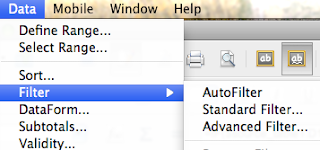

On the header filters, you can configure filter to whatever levels you want. Here are two examples:


As you can see, by using Excel it makes much easy to compare two tables and find out the differences.

Import Data Issues

The above method works fine for most of cases. I had a problem to get data from SQL to Excel last week when I was working on one SQL database table. I had spent for 2 hours+ finally I found the problem. Some rows contain double quotes in their raw data. For example, there was " being used in a table as inch unit. This unbalanced quote caused the Excel to import rows from either clipboard or csv file.

Excel treats " as string data type mark. In order to make importing to work, it has to be escaped. I used VIM to resolve the issue. Just simply search for " by typing /" in VIM, it will mark and find those quotes. Then I used VIM's Replace feature to escape all the single quote by the command(replacing " with ""):

:%s/"/""/g

After the normalization of data, I got the expected data from SQL query result to my Excel.

Excel Being too Smart

This issue is beyond the main topic of comparing data between SQL database tables. However, it is worth to leave a note here.

Here is the story of what I do to import or copy data from SQL query result to Excel. For the first data source, I copy the result of SQL query into clipboard. I think that by default, the delimiter used to separate columns is a tab char. I use Paste Special feature from Excel to paste pure text. Then Excel will prompt me to select what delimiter is and preview data in a grid. I like it very much. However, when I repeat the same steps to copy the data result from the second data source, the Excel does not prompt me, nor provide preview. It just copy data to columns. It is too smart to remember the delimiter.

However, I would like to preview data before pasting. I could not find a way to disable this smart feature. Finally I found an alterative way. I pasted the data to VIM first. Then replace the tab to semi-command (make sure it is not used in the raw data):

:%s/\t/;/g

Then copy the whole text to Excel. This change will fool the Excel to prompt the preview as expected.

Read More...